

Why in DataModel already checked Enabled live update but in Form Page it is not directly change the value (not updated)

Hi All, question please, I have form, let say named : MyApplication form page, and there have a business process that using Signal.
And in that Business Process, there have a calculation that can modified value for let say field ABC. The Business Process and Calculation is already fine, but it is not directly change value from ABC field. It must refresh page first, then it is changed.
My expected is, when Signal on Business Process is triggered, the Calculation running, then the output will change ABC field directly, not must to refresh.
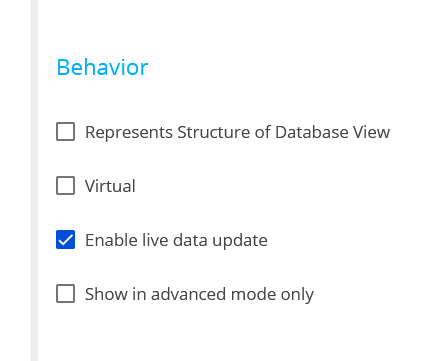
I checked Data Model Behaviour already Enabled live data update, but it is not working.
Note : In another form page, it is not happening. I don't know why, this issue only happened in MyApplication form page.
Need advice please, thank you.
Like

Hi,
The live data update checkbox is already on, so the problem is usually that this page is not connected to that object's updates, or the way the process writes the value doesn't send a refresh. Since it works on your other pages, compare MyApplication against a working page on each point below.
1. Is MyApplication a Freedom UI page?
Live data update only works on Freedom UI pages. If MyApplication is a Classic UI page, or the section opens the record in a classic page, the checkbox does nothing. Then you either rebuild the page in Freedom UI or add code to refresh it (a client message plus a page reload).
Check: open the page in the designer. A Freedom UI page uses the drag-and-drop designer with components on the left.
2. Is the checkbox on the right object?
The setting only matters on the object that is the page's primary data source. Common mismatches:
- The page is based on a different object, such as a replacement or a similarly named object (for example
UsrMyApplicationversusUsrApplication). - Field ABC belongs to a related object (for example
Contact.ABCshown through a lookup), and the process updates that related record. Then the related object needs live data update enabled too. - The process updates a different object from the one the page is showing.
Check: in the page designer, look at the data source and its object name. Compare it with the object in the process's Modify data element.
3. Was the object saved and published after you ticked the box?
Ticking the box is not enough. You need to Save and Publish the object. Then log out and back in, or clear the browser cache, so the page loads the new setting.
4. How does the process write ABC?
- Modify data element: sends the update to open pages. ✅
-
Script task that writes with direct SQL (
Update,CustomQuery, a rawUPDATE ...): skips the object layer, so no update is sent to the page. ❌If you need a script, save through an
Entityinstead, for exampleentity.SetColumnValue(...)followed byentity.Save().
5. Signal timing
If the signal fires on Record modified and the user saves from the same page, the process can write ABC while the page is still finishing its own save. The page then keeps the old value it has in memory.
- In the signal element, make sure "Run following elements in background" is ticked so the calculation runs after the save completes.
- If the user still has unsaved changes on the page, the incoming value may not overwrite the form. Test with a clean, saved record.
6. Is ABC a real field on the page?
ABC must be bound to the object's column through the page's data source. If it is a page attribute or a custom field filled by a handler, live update won't refresh it.
The first thing to check is publishing and compiling the object, then performing the test after compilation is complete.
Quick test to narrow it down: open a MyApplication record in one browser tab. In another tab, open the same record in the section list, or as a different user, and change ABC by hand.
- If the first tab doesn't update, the cause is points 1 to 3 (page or object setup).
- If it does update but the process change doesn't show, the cause is points 4 or 5 (how or when the process writes the value).
Hi Oleg, so I already tried to open Form Page with another browser, and login with another account. Then I changed the value from ABC field in that another browser.
- In another browser = Saved--> In the first browser = the value is not change
- In another browser = Not saved (only change value) --> In the first browser = the value is not change also
Based on your suspect above, so maybe the cause is points 1 to 3.
I checked from point 1 to 3 :
1. My Form Page is using Freedom UI
2. Yes, it is in the right object. I compare ABC field in the form page (it is from primary data source)
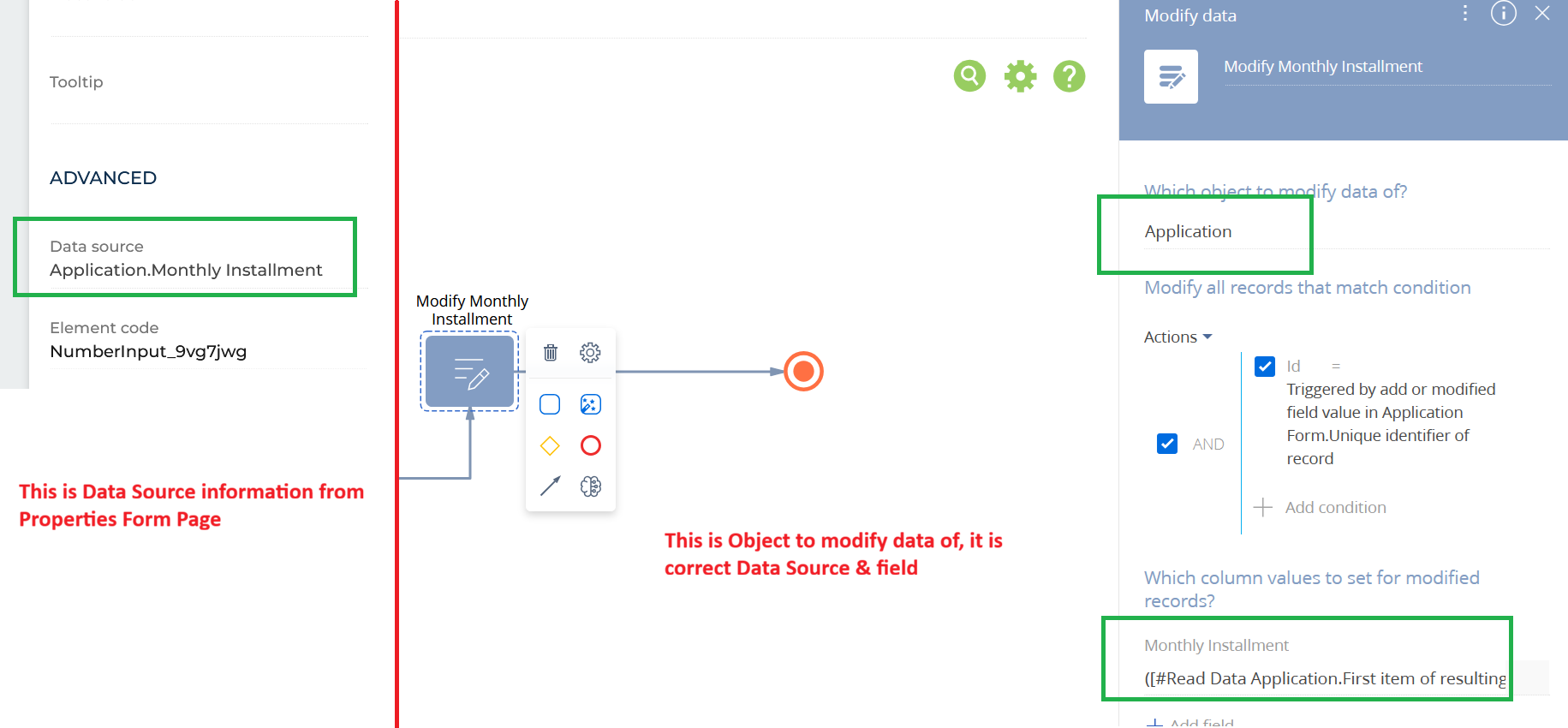
3. Yes, the object I already Save & Published after tick the box "Enable Live Data Update"
So, all is correct setup Oleg, any suggestion? Thank you for help.
Dedi Sadikin,
Just to be on the same page: have you tried compiling the object using this option?
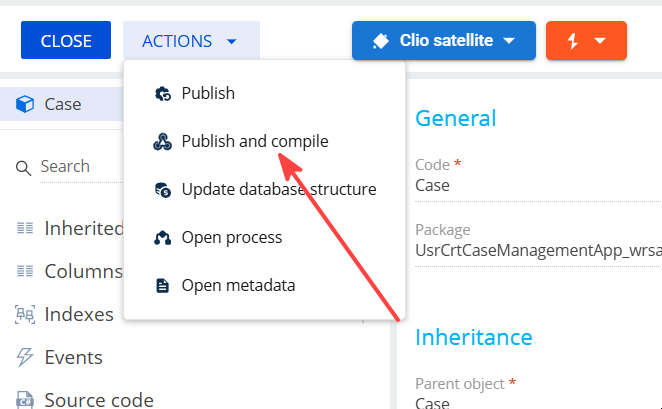
It might help, we had tickets related to such behavior in the past and the fix was to compile the object.
Your test shows the problem isn't the business process. A manual change saved from another browser also doesn't reach the first browser, so live update isn't working for this page at all.
The "not saved" case is normal: unsaved changes never go to other users. Only the "saved" case matters.
Step 1: Repeat the test on a page that works
Do the same two-browser test on one of the pages where you said it works. Use two different users, change the field, save, and watch the other browser.
-
If that page also doesn't update: the problem is server or network, not your object. Common causes:
- The WebSocket connection is blocked by a proxy, load balancer or firewall.
- Several web servers run without Redis message sharing configured. A save on server A is then never sent to a user connected to server B, so it looks random by page or user.
To check, open the browser DevTools (F12), go to Network, and filter by WS. There should be an open WebSocket connection, and a message should arrive when the other browser saves. If nothing arrives, give this to your Creatio admin or hosting support.
- If that page does update: the problem is specific to the Application object or the MyApplication page. Continue with step 2.
Step 2: Check the object and page
- The checkbox stayed ticked. Close the object designer, reopen the Application object, and confirm "Enable live data update" is still ticked. If the object has a replacing version in another package, the tick may have been saved somewhere that isn't used.
- Clean restart. After publishing, the setting may still be cached. Log out every test user and clear the browser cache. On-site, restart the app or ask your admin to flush Redis. On cloud, ask support to restart the site.
- No unsaved changes in the first browser. If you edited anything on the page in browser 1 before the other save, the page may keep its own values. Open the record fresh and touch nothing, then save in browser 2.
- Custom code on the page. If MyApplication has handlers added by a developer, temporarily disable them and test again. Look in the page's source code at
handlers, especially anything that intercepts data loading or attribute changes. - Isolation test. Create a new Freedom UI page for the same Application object using the default template, add field ABC, and run the two-browser test.
- It works: the original MyApplication page is the problem. Compare the two, or rebuild the page.
- It doesn't work: the object is the problem. Raise a ticket with Creatio support and include your Creatio version and this test.
If you need a fix now
Until live update works, add a Refresh button to the page. In the Freedom UI button properties, choose the action that reloads the page data. Users can then see the process result without a full browser refresh.
Your Modify data setup in the screenshot looks correct: the object is Application, the filter is Id = the signal's record, and it sets Monthly Installment. Once live update works for manual edits, the process result should show up as well.
Oleg, thank you for the feedback, but is it possible if we have session, maybe 15 minutes on zoom? I hard to explain in this Community. I don't know, I think we have missunderstanding. Thank you, appreciate it.
Dedi Sadikin,
Please register a ticket by emailing us at support@creatio.com, specifying link to the application where the issue occurs with external access to this application (access to data and configuration are needed) under the system administrator and steps to reproduce the issue and the support team will look into it.
Hi Oleg, thank you for the feedback, I already email to support creatio about this, and I upload video how to produce this question, also I already give access until 14 Oct 2026. Thank you for the support Oleg, appreciate it.