


Hi.
I wish to deactivate certain records in our Department table, since it is loaded with invalid records that were imported from SalesForce. See first image below -- I enabled "Allow record deletion", and ran the package.
The Department list looks the same (see second image) with no option to disable a record. Do I need to add a column or something?
Thanks
Rob
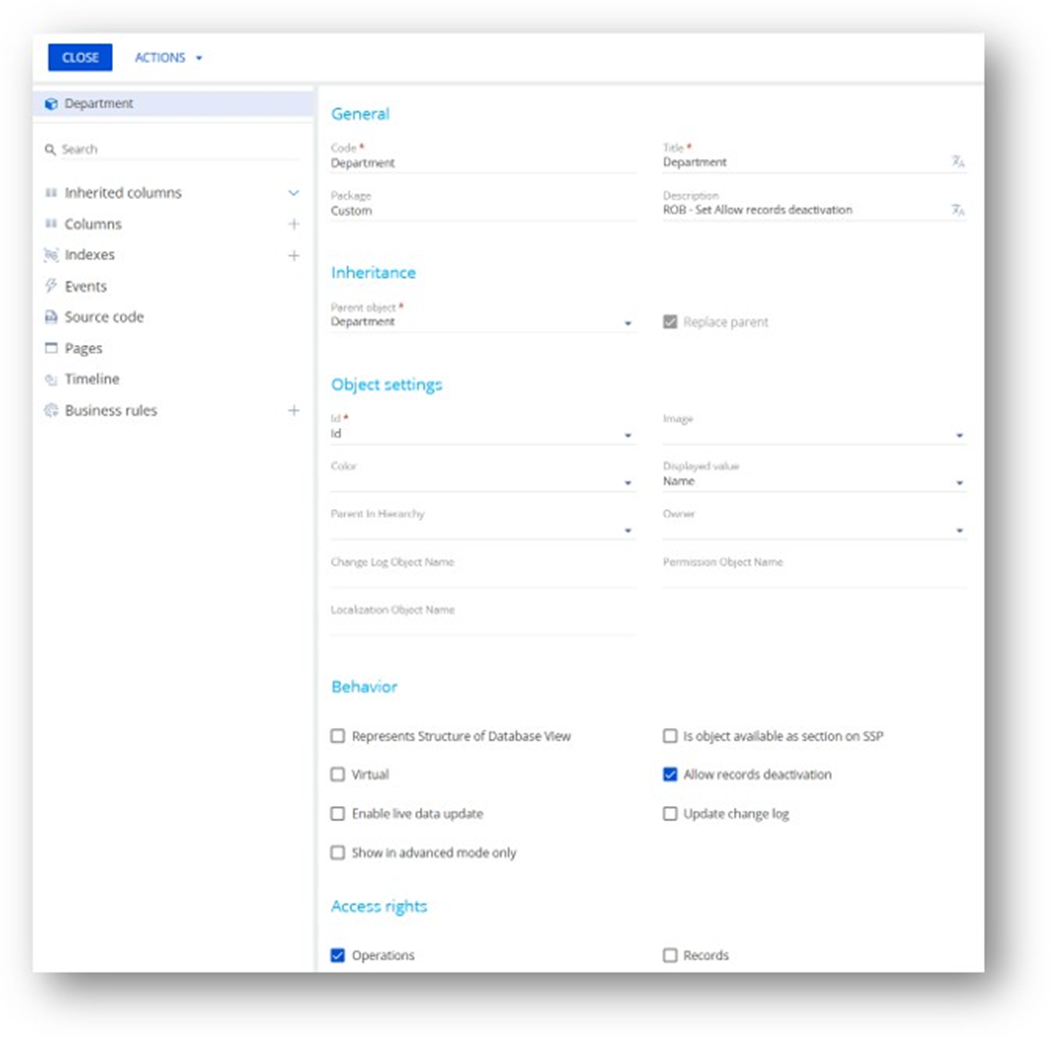
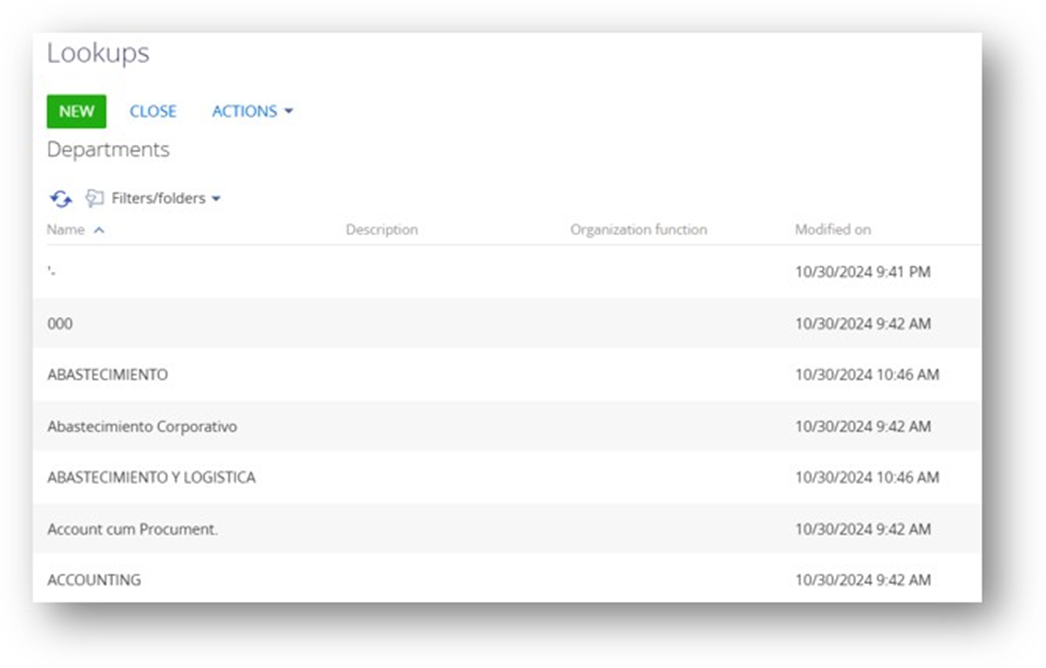
Like

Hello Rob!
The "Allow record deactivation" option adds a new field to the object, which allows you to deactivate the record.
To deactivate (not delete) records in your Department table, please follow these steps:
1. In the Object Designer, ensure that you have enabled the "Allow record deactivation" property for the Department object.
2. After enabling, publish the object. This automatically adds the "RecordInactive" column—no need to add anything manually.
Once published, you can set records as inactive: To deactivate records, you can add field "Inactive" to the displayed fields, so you can manage it from lookups:
You can also use a business process or apply a bulk data operation to set the RecordInactive field to true for those records.
Best regards,
Alina
Hi.
In my screen captures, you can see that I did those steps ... I think I did them correctly --
I enabled the "Allow record deactivation" (see first image), and published, but no "RecordInactive" column appears (second image).
I did this in front of my Lead Creatio Developer, and he was not sure why the "RecordInactive" column did not appear.
Any suggestions on what to check next?
Thanks!
Rob
Rob Rudloff,
I can see that you have contacted our support team separately. We will continue the communication within that case.
Have a great day!
Rob Rudloff,
actually, column will not been added to a list of columns in lookup list (list profile setup). you have to add any column in the column setup for the list
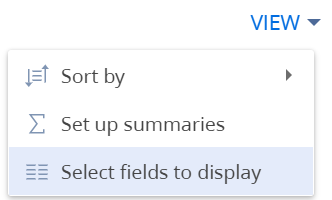
and there you could select required columns including RecordInactive (Deactivated) column