

Is it possible in Creatio to change Text color or make font to Bold automatically from Business Process?

Hi All, question please, is it possible in Creatio to :
1. Change Text color field automatically from business process
2. Or make font from normal to Bold automatically from business process
If it can't, maybe any method to make it happen?
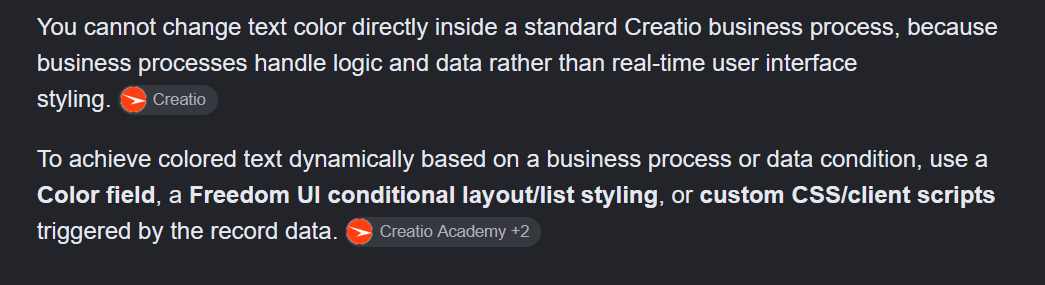
I googling, found this :
I just want to confirm, or maybe you have workaround to do this?
The scenario is :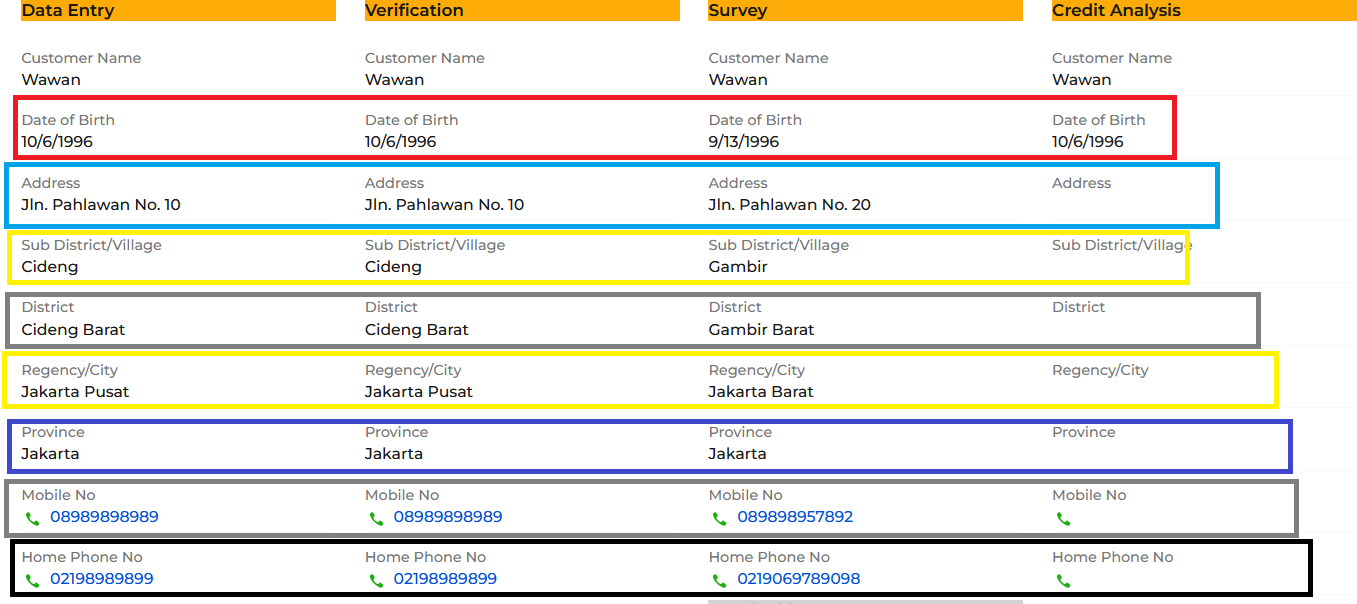
I have 4 data model, and each from the column is the same field.
I want to compare all, and if we find the different value between them, it will change the color to red, OR if not possible, the workaround is make the font Bold.
So the user can aware, and fast directly notice the different.
Thank you.
Like

Hi,
A business process only writes data. It cannot change color or font weight on the page. But the page can change its own styling based on data, so the pattern is: the process writes a "mismatch" flag, and the page reads that flag to style the field.
Step 1. Store the comparison result in a column
On the object shown on the page, add one column per compared field, for example UsrDobMismatch (Boolean). Optionally add a text column UsrDobColor that holds either auto or a hex color like #d32f2f.
The business process reads the four records (Read data x4), compares them with a Formula element, and writes the result with Modify data. Trigger it on record save or on a schedule, whatever fits your flow.
Step 2. Style the page from that column
Option A, no code at all. In the Freedom UI page designer, add two copies of the value element for each field. Make one plain and one bold with red color (the Label element has color and thickness settings in the designer). Then add page business rules: show the red element when UsrDobMismatch is true, show the plain one when it is false.
Option B, small code change. Show the value as a crt.Label instead of an input and bind the styling properties to attributes. Label properties support $Attribute binding, so if the process fills the color column, no handler is needed:
{
  operation: "insert",
  name: "SurveyDobLabel",
  values: {
    type: "crt.Label",
    caption: "$PDS_UsrSurveyDob",
    labelType: "body",
    labelColor: "$PDS_UsrDobColor",        // "auto" or "#d32f2f"
    labelThickness: "$PDS_UsrDobThickness" // "default" or "semibold"
  },
  parentName: "SurveyColumn",
  propertyName: "items",
  index: 1
}
If you prefer not to store styling values in the database, keep only the Boolean column and compute the color in a crt.HandleViewModelAttributeChangeRequest handler on the page. When the Boolean attribute changes, set a DobColor attribute to red or auto and bind labelColor to it.
One thing to watch: if the process runs after save, the page will show the new styling only after reload. If the users expect it instantly, do the comparison in the page handler instead of the process. The four values are already loaded on the page, so the handler can compare them directly and set the color attributes with no round trip.