knowledge base
Q&A
SDK
support

Question

Is there any way to make a page available for editing only?

Answer

The updateButtonsVisibility() method is defined in BasePageV2.

Method 1: Override the updateButtonsVisibility() method so that ShowSaveButton had a false value: 

this.set("ShowSaveButton", false);

In this case, the fields will not be locked, but the "Save" button will not be displayed.

Method 2: Perform verification upon saving. In case of matching the necessary conditions, execute the parent method or display a message that editing is not permitted.

Like 0

Like

Share

0 comments
Show all comments

Question

By default, the mobile application wizard allows you to add only two fields to the section list.

Is it possible to increase the number of displayed fields?

Answer

The list can show not only the displayed columns but also display values generated based on the values of several columns. If complex formatting is used, or if it required to display different values depending on certain conditions, column values can be specified as functions (using the Terrasoft.sdk.GridPage.setPrimaryColumn() and Terrasoft.sdk.GridPage.setSecondaryColumn() methods):

Terrasoft.sdk.GridPage.setPrimaryColumn('Account', {
	columns: ['Name', 'PrimaryContact'],
	convertFunction: function(values) {
		if (!Ext.isEmpty(values.PrimaryContact)) {
			return values.Name + ' (' + values.PrimaryContact + ')';
		} else {
			return values.Name;
		}
	}
});

You can also specify additional columns when selecting the value of the lookup field. This is done similarly to a grid, but only the Terrasoft.sdk.LookupGridPage class is used:

Terrasoft.sdk.LookupGridPage.setSecondaryColumn ("Account", "PrimaryContact");

The alternative option for expanding the capabilities of the grid is to change the template of the grid elements:

Terrasoft.util.writeStyles(
	".div-table {",
		"display:table;",
		"width:100%;",
	"}",
	".div-table-row {",
		"display:table-row;",
		"width:100%;",
		"clear:both;",
	"}",
	".div-table-col {",
		"float:left;",
		"display:table-column;",
		"min-width:50%;",
	"}",
	".div-table-col-button {",
		"float:right;",
		"display:table-column;",
	"}"
);
Ext.define("MyCustomList", {
	override: "Ext.Terrasoft.List",
 
	initializeItemTpl: function() {
		this.callParent(arguments);
		var store = this.getStore();
		var model = store.getModel();
		var modelName = model.getName();
		if (modelName === "Account") {
			var tpl = this.getItemTpl();
			tpl.html =
			"" +
				"" +
					"{[this.applyPrimaryColumn(values)]}" +
					"{Phone}" +
				"" +
				"" +
					"{[this.applySecondaryColumn(values)]}" +
					"{Web}" +
				"" +
			"";
		}
	}
 
});


Like 0

Like

Share

0 comments
Show all comments
knowledge base
SDK
Q&A
support

Question

We have a task to lock editing of a Supplier field on the contract edit page (ContractPage) under certain conditions. We have tried "this.get" and "find('Supplier')" and set an "enabled" and "IsEnabled" options, it didn't help. We have also consulted Google - but it didn't work.

If the supplier field is cleared, the payment details are blocked, that is such functionality is available in bpm'online. How can we use it? I mean, we need to have it on the program level, not through connecting, etc., since the locking conditions are quite complicated and can be changed with time or require database queries, etc.

Answer

This function can be implemented as follows:

var supp = this.find('Supplier');
supp.customConfig = {
    enabled: { bindTo: 'methodName''} }

or

var supp = this.find('Supplier');
supp.customConfig = {
    enabled: false
}

The below example of a code demonstrates locking of the "Supplier" field if the "Number" field value is not equal to "2":

var supp = this.find('Supplier');
supp.customConfig = {
    enabled: { bindTo: 'test'}
}
this.methods.test = function(){ return this.get('Number') == '2' };


Like 0

Like

Share

0 comments
Show all comments
knowledge base
SDK
Q&A
support

Case

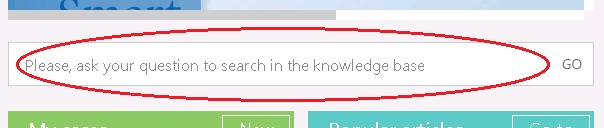
We need to implement the command line search available on portal user pages in the knowledge base not only by the primary field (name), but also by article contents and public tags.

Solution

The search can be developed in the "knowledge base search line" of a portal user page. It is a separate element that looks as a command line, but its logic implementation is contained in the KnowledgeBaseSearchModule schema.

This page can be debugged when logged in as a regular user via regular interface by opening it as a module using the following link:

http://your-website/0/Nui/ViewModule.aspx#PortalMainPageModule/

To implement an advanced filter instead of filtering by article title only, modify the following code by replacing the KnowledgeBaseSearchModule base schema:

/*sessionFilters.CustomFilters = { value: value, displayValue: value, primaryDisplayColumn: true };*/
 
var filters = Ext.create("Terrasoft.FilterGroup");
filters.addItem(Terrasoft.createColumnFilterWithParameter(
    Terrasoft.ComparisonType.CONTAIN, "Notes", value));
filters.addItem(Terrasoft.createColumnFilterWithParameter(
    Terrasoft.ComparisonType.CONTAIN, "Name", value));
filters.addItem(Terrasoft.createColumnFilterWithParameter(
    Terrasoft.ComparisonType.CONTAIN, "Keywords", value));
filters.logicalOperation = Terrasoft.LogicalOperatorType.OR;
 
var serializationInfo = filters.getDefSerializationInfo();
serializationInfo.serializeFilterManagerInfo = true;
 
sessionFilters.CustomFilters = {
    "null": {
        "displayValue": value,
        "filter": filters.serialize(serializationInfo)
    }
};

To record public tags into the "Keywords" column for further search by this column, implement the events of modifying, adding and deleting knowledge base tags by creating them in the KnowledgeBaseInTagV2 replacing object.

var userConnection = (UserConnection)HttpContext.Current.Session["UserConnection"];
Guid entityId = Entity.GetTypedColumnValue("EntityId");
var esq = new EntitySchemaQuery(userConnection.EntitySchemaManager, "KnowledgeBaseInTagV2");
var publicTypeId = "D6FB4DE6-0809-41FE-A84F-6D245CBC5F32";
esq.AddColumn("Tag.Name");
var entityFilter = esq.CreateFilterWithParameters(FilterComparisonType.Equal,
    "Entity.Id", entityId);
var typeFilter = esq.CreateFilterWithParameters(FilterComparisonType.Equal,
    "Tag.Type", publicTypeId);
esq.Filters.Add(entityFilter);
esq.Filters.Add(typeFilter);
var entityCollection = esq.GetEntityCollection(userConnection);
string allTags = string.Empty;
foreach (var entity in entityCollection) {
    var tagName = entity.GetTypedColumnValue("Tag_Name");
    allTags += tagName + ", ";
}
using (DBExecutor executor = userConnection.EnsureDBConnection()) {
    Update updateRelationshipQuery = new Update(userConnection, "KnowledgeBase");
    updateRelationshipQuery.Set("Keywords", Column.Parameter(allTags));
    updateRelationshipQuery.Where("Id").IsEqual(Column.Parameter(entityId));
    updateRelationshipQuery.Execute(executor);
}
return true;

The last thing is: after publishing the schemas, populate the "Keywords" column with public tags for already existing knowledge base records via the following script:

UPDATE KnowledgeBase
SET Keywords = ISNULL(res.Tags, '')
FROM (SELECT a.Id, Tags = (SELECT stuff((
                select ', ' + Name from (SELECT t.Name FROM KnowledgeBaseTagV2 t WHERE
                                t.TypeId = 'D6FB4DE6-0809-41FE-A84F-6D245CBC5F32'
                                and t.Id
                                IN (
                                                SELECT e.TagId FROM KnowledgeBaseInTagV2 e WHERE e.EntityId = a.Id
                                )
) tb FOR XML PATH('')), 1, 2, ''))
FROM KnowledgeBase a
GROUP BY a.Id) res
WHERE res.ID = KnowledgeBase.Id

Where "D6FB4DE6-0809-41FE-A84F-6D245CBC5F32" is a "public tag" type identifier.

Necessary conditions

Application version with a portal user page and the KnowledgeBaseSearchModule base schema.

Like 0

Like

Share

0 comments
Show all comments
SDK
support
cases

Case description:

We need to add virtual fields to page like OpportunityPageV2 which will display the value of the field from the Contact object.

Algorithm of realization:

  1. You should create replacing client schema for your page.
  2. You should create localizable strings which will contain captions of the fields.


    Figure 1. Adding of localizable string

     
  3. You should create attributes for your fields like following:

    "GlbSignatureDeeds": {

        "dataValueType": Terrasoft.DataValueType.DATE,

        "type": Terrasoft.ViewModelColumnType.VIRTUAL_COLUMN

    }

    Enumeration dataValueType specifies the type that will contain the virtual field.


    Figure 2. Terrasoft.DataValueType values

  4. You should add code like following to diff for inserting your field into page:

    {
        "operation": "insert",
        "name": "GlbSignatureDeeds",
        "values": {
            "layout": {
                "colSpan": 12,
                "rowSpan": 1,
                "column": 0,
                "row": 11
            },
            "caption": {
                "bindTo": "Resources.Strings.DeedsSigned"
            },
            "bindTo": "GlbSignatureDeeds",
            "enabled": {
                "bindTo": "Contact"
            },
            "contentType": 0
        },
        "parentName": "GeneralInfoTabGridLayoutef9cc299",
        "propertyName": "items",
        "index": 16
    },


  5. You should add an attribute for binding object like Contact. In the attributes property of the view model, you need to add the name of the column for which the dependency is set. For this column, declare the property dependencies, which is an array of configuration objects, each of which contains the following properties: columns - an array of column names, from the values of which the value of the current column depends; methodName is the name of the handler method. 

    "Contact": {
        "lookupListConfig": {
            "columns": ["UsrSignatureDeeds", "UsrContractSigned"]
        },
        "dependencies": [
            {
                "columns": ["Contact"],
                "methodName": "onContactChanged"
            }
        ]
    },


  6. You should add the logic to fill the virtual field to “methods”. Usually a virtual field is associated with the field of another object or it is calculated.
    onContactChanged: function() {
        if (this.get("Contact")) {
            this.set("GlbSignatureDeeds", this.get("Contact").UsrSignatureDeeds);
        } else {
            this.set("GlbSignatureDeeds", null);
        }
    },


  7. You should call this method from onEntityInitialized method.

    onEntityInitialized: function() {
        this.callParent(arguments);
        this.onContactChanged();
    },


  8. If you want to save this virtual fields, youd should add code like following into save() and onSaved() methods:

    save: function() {
        this.set("NeedUpdateDateDeeds", this.changedValues && this.get("Contact") &&
            this.changedValues.hasOwnProperty("GlbSignatureDeeds"));
        this.callParent(arguments);
    },
    onSaved: function(response, config) {
        if (this.get("NeedUpdateDateDeeds")) {
            var args = arguments;
            var update = Ext.create("Terrasoft.UpdateQuery", {
                rootSchemaName: "Contact"
            });
            var contactId = this.get("Contact").value;
            var filter = Terrasoft.createColumnFilterWithParameter(this.Terrasoft.ComparisonType.EQUAL,
                "Id", contactId);
            update.filters.addItem(filter);
            if (this.get("NeedUpdateDateDeeds")) {
                update.setParameterValue("UsrSignatureDeeds", this.get("GlbSignatureDeeds"),
                    this.Terrasoft.DataValueType.DATE);
            }
            update.execute(function() {
                this.set("NeedUpdateDateDeeds", false);
                this.superclass.onSaved.call(this, args);
            }, this);
        } else {
            this.callParent(arguments);
        }
    },


Like 0

Like

Share

1 comments

I believe with this method that the field brought in from a linked entity does not work properly when you make a modification to the lookup field, but then cancel the change - you end up with the previous value before pressing cancel. i.e. in this example, the virtual field GlbSignatureDeeds would not be updated back to its original value when cancelling the changes.


I suggest modifying step 5 so instead the attribute is set up in the following way:

"Contact": {
    "lookupListConfig": {
        "columns": ["UsrSignatureDeeds", "UsrContractSigned"]
    },
    "onChange": "onContactChanged"
},

That way onContactChanged gets run when cancelling the changes made in an edit page.


As a bonus, that means you can also remove step 7, as the onContactChanged method is called automatically when loading a record for the first time.

Show all comments

Case description:

We need to have opportunity to open edit page by double click on detail record.

Algorithm of realization:

For example, I want to open all details by double click on the appropriate detail record:

  1. Create replacing Client Module for schema "Base schema - Detail with list" (BaseGridDetailV2)
  2. Add next code to methods and diff properties:

    methods: {
            onGridDoubleClick: function() {
            this.editRecord();
        }
    },
    diff: /**SCHEMA_DIFF*/[
        {
            "operation": "merge",
            "name": "DataGrid",
            "values": {
                "openRecord": {
                    "bindTo": "onGridDoubleClick"
                }
            }
        }
    ]/**SCHEMA_DIFF*/


  3. Save schema -> Clear cache

Like 1

Like

Share

0 comments
Show all comments
knowledge base
SDK
Q&A
support

Question

I need to delete the connection to Documents and Leads in the [Connected to] detail of the [Activities] section.

Answer

For deleting the needed columns from the [Connected to] detail of the activities, execute the following request to the database:

DELETE FROM EntityConnection WHERE SysEntitySchemaUId = 'c449d832-a4cc-4b01-b9d5-8a12c42a9f89'
AND (ColumnUId = 'd6e94162-4354-413a-bc84-e118df5e852e'
OR ColumnUId = 'f6137557-741e-42f8-8bf6-69b2524a83f7')


Like 2

Like

Share

0 comments
Show all comments
knowledge base
SDK
Q&A
support

Question

How can I set up a field of a drop-down list type out of a lookup field in an editable record list version 7.7.0.2293 SalesEnterprise + Marketing + CustomerCente? I created an editable record list of activities, the [Status] field on the activity page is a drop-down list. But in the editable record list the same field is a typical lookup with the corresponding lookup window.

P.S. The solution is useful, if there is no edit page or there are either a lot of them, or they are basic.

Answer

You can override the generateActiveRowControlsConfig() method in the detail schema and pass the necessary additional config when needed.

In our case, you can add:

if (columnName = "Status") {
 
   cellConfig.contentType = Terrasoft.ContentType.ENUM;
 
}

Right after you create cellConfig in it.

You can take the source code from the ConfigurationGridUtilities schema if it is different from the one used in the provided example.

An example of a detail schema, where everything was tested, including making the grid editable, with overriding generateActiveRowControlsConfig:

define("UsrSchema1Detail", ["terrasoft", "BusinessRulesApplierV2", "ConfigurationEnums", "BusinessRuleModule",
    "GridUtilitiesV2", "ConfigurationGrid", "ConfigurationGridGenerator", "ConfigurationGridUtilities"], function(
        Terrasoft, BusinessRulesApplier, ConfigurationEnums, BusinessRuleModule) {
    return {
        entitySchemaName: "Activity",
        attributes: {
         "IsEditable": {
            dataValueType: Terrasoft.DataValueType.BOOLEAN,
            type: Terrasoft.ViewModelColumnType.VIRTUAL_COLUMN,
            value: true
         }
        },
        mixins: {
         ConfigurationGridUtilites: "Terrasoft.ConfigurationGridUtilities"
        },
        details: /**SCHEMA_DETAILS*/{}/**SCHEMA_DETAILS*/,
        diff: /**SCHEMA_DIFF*/[
            {
            "operation": "merge",
            "name": "DataGrid",
            "values": {
               "className": "Terrasoft.ConfigurationGrid",
               "generator": "ConfigurationGridGenerator.generatePartial",
               "generateControlsConfig": {"bindTo": "generatActiveRowControlsConfig"},
               "changeRow": {"bindTo": "changeRow"},
               "unSelectRow": {"bindTo": "unSelectRow"},
               "onGridClick": {"bindTo": "onGridClick"},
               "activeRowActions": [
                  {
                     "className": "Terrasoft.Button",
                     "style": this.Terrasoft.controls.ButtonEnums.style.TRANSPARENT,
                     "tag": "save",
                     "markerValue": "save",
                     "imageConfig": {"bindTo": "Resources.Images.SaveIcon"}
                  },
                  {
                     "className": "Terrasoft.Button",
                     "style": this.Terrasoft.controls.ButtonEnums.style.TRANSPARENT,
                     "tag": "cancel",
                     "markerValue": "cancel",
                     "imageConfig": {"bindTo": "Resources.Images.CancelIcon"}
                  },
                  {
                     "className": "Terrasoft.Button",
                     "style": this.Terrasoft.controls.ButtonEnums.style.TRANSPARENT,
                     "tag": "remove",
                     "markerValue": "remove",
                     "imageConfig": {"bindTo": "Resources.Images.RemoveIcon"}
                  }
               ],
               "initActiveRowKeyMap": {"bindTo": "initActiveRowKeyMap"},
               "activeRowAction": {"bindTo": "onActiveRowAction"},
               "multiSelect": false
            }
         }
        ]/**SCHEMA_DIFF*/,
        methods: {
            generateActiveRowControlsConfig: function(id, columnsConfig, rowConfig) {
                this.columnsConfig = columnsConfig;
                var gridLayoutItems = [];
                var currentColumnIndex = 0;
                this.Terrasoft.each(columnsConfig, function(columnConfig) {
                    var columnName = columnConfig.key[0].name.bindTo;
                    var column = this.getColumnByColumnName(columnName);
                    var cellConfig = this.getCellControlsConfig(column);
 
                    cellConfig = this.Ext.apply({
                        layout: {
                            colSpan: columnConfig.cols,
                            column: currentColumnIndex,
                            row: 0,
                            rowSpan: 1
                        }
                    }, cellConfig);
 
                    if (columnName = "Status") {
                        cellConfig.contentType = Terrasoft.ContentType.ENUM;
                    }
 
                    gridLayoutItems.push(cellConfig);
                    currentColumnIndex += columnConfig.cols;
                }, this);
                var gridData = this.getGridData();
                var activeRow = gridData.get(id);
                var rowClass = {prototype: activeRow};
                BusinessRulesApplier.applyRules(rowClass, gridLayoutItems);
                var viewGenerator = this.Ext.create("Terrasoft.ViewGenerator");
                viewGenerator.viewModelClass = {prototype: this};
                var gridLayoutConfig = viewGenerator.generateGridLayout({
                    name: this.name,
                    items: gridLayoutItems
                });
                rowConfig.push(gridLayoutConfig);
            },
        }
    };
});

 

Like 0

Like

Share

0 comments
Show all comments

Symptoms

Bpm'online mobile bug report

Type: Terrasoft.SourceCodeException

Message: TypeError: undefined is not an object (evaluating 'columnConfig.columnType')

Cause

The error occurs due to the fact that you have not configured the parameters of the embedded details correctly, e.g., in the "Leads" section.

Solution

You have to correctly configure all the details. For example, to set up the “Files and Attachments” detail in the “Leads” section:

- To display the details in the mobile application, you must select the “Lead attachments” detail

- Select "Lead" in the "Detail column" field

- In the “Object column” field specify “Id”

Like 0

Like

Share

0 comments
Show all comments

Question

I need to place a button under or next to one of the fields on the edit page, clicking on which will display the lookup list.

I need to open a lookup that is not related to the page, and I may need additional operations before that. This cannot be done by just adding a lookup field.

Is it possible to place a button somewhere in the middle of the page? The manual action will be quite inconvenient for the user.

Answer

In the config view, define the required control + a method to display it, and in the controller, assign a handler:

Ext.define("...view...", {
    config: {
       refreshButton: {
            id: 'usr_order_refresh_btn',
            cls: "x-button-primary-blue",
            text: 'Update'
        }
    },
    showRefreshButton: function (isShow) {
        var navigationPanel = this.getNavigationPanel(); /*a component in which the controll will be displayed*/
        var refreshButton = this.getRefreshButton();
        if (isShow) {
            this._refreshButton = navigationPanel.addButton(refreshButton);
        } else {
            navigationPanel.removeButton(refreshButton);
        }
        return this._refreshButton;
    }
});
Ext.define("...controller...", {
    initializeView: function (view) {
        this.callParent(arguments);
        var btn = view.showRefreshButton(true);
        btn.on("tap", this.onRefreshButtonTap, this);
    },
    onRefreshButtonTap: function() {
        /* subject */
    }
});

If you need to open a picker to select a value, then look in the MobileActivityGridPageControllerV2.  For example, there are pickers that enable you to select the "Responsible" employee (the "getEmployeePicker()" method) or select the schedule mode (the "getGridModePicker()" method).

Like 0

Like

Share

5 comments

Hi,

I am given with the requirement to create a button in Account Edit page section in Mobile application. The above code seems difficult to understand. Can you please explain How create/add a button in mobile application.

Please help/guide me to acheive this.

Sriraksha KS,

Hello, to add the button to the edit page you can follow the instructions from the article: 

https://community.bpmonline.com/articles/adding-custom-user-action-mobi…


Best regards,

Alex

Alex_Tim,

The link you gave displays

"You are not authorized to access this page."


Please help !!

Sriraksha KS,

It looks fine from my side. I recommend opening this link in another browser or incognito mode.

Seems like when you are logged into community, the link is not working; i was not logged in and it opened for me; but once i logged into my community profile, the link didn't open.

Show all comments