Question

Previously, there was an opportunity to configure the number of records in one data package of the synchronization process (offline) of the mobile application (100 by default).

Answer

You need to change two parameters in the SyncOptions section (the second indicates the number of "bundles"):

"SyncOptions": {
    "UseSkipToken": true,
    "ImportPageSize": 1000,
},


Like 0

Like

Share

0 comments
Show all comments

Case

I added a contact and an event in the iPad version and synchronized. Then I opened the iPhone version and synchronized, but the new data is not shown in the iPhone version.

Goal

Data between multiple mobile applications synchronizes properly

Solution

As a temporary solution, I would recommend you to clear cache on the target device mobile application. This will cause full synchronization, which means downloading of all records, alternatively to partial synchronization, which download only changed ones.

Necessary conditions

The user should have the rights to use the mobile application.

Like 0

Like

Share

0 comments
Show all comments
knowledge base
SDK
Q&A
support

Question

How to call a stored procedure from web service?

Answer

Create a source code schema:

namespace Terrasoft.Configuration.UsrTestStored
{
    using System;
    using System.Web;
    using System.ServiceModel;
    using System.ServiceModel.Web;
    using System.ServiceModel.Activation;
    using System.Linq;
    using System.Text;
    using System.Collections.Generic;
    using System.Collections.Concurrent;
    using System.Data;
    using Terrasoft.Common;
    using Terrasoft.Core;
    using Terrasoft.Core.DB;
    using Terrasoft.Core.Entities;
    using Terrasoft.Core.Factories;
    using Terrasoft.Core.Store;
    using Terrasoft.Nui;
 
    [ServiceContract]
    [AspNetCompatibilityRequirements(RequirementsMode = AspNetCompatibilityRequirementsMode.Required)]
    public class UsrTestStored
    {
        [OperationContract]
        [WebInvoke(Method = "GET", RequestFormat = WebMessageFormat.Json, BodyStyle = WebMessageBodyStyle.Wrapped,
        ResponseFormat = WebMessageFormat.Json)]
        public string GetTest(string inputParam)
        {
            var userConnection = (UserConnection)HttpContext.Current.Session["UserConnection"];
            StoredProcedure storedProcedure = new StoredProcedure(userConnection, "tsp_Test");
            storedProcedure.PackageName = userConnection.DBEngine.SystemPackageName;
            using (var dbExecutor = userConnection.EnsureDBConnection()) {
               try {
                   dbExecutor.CommandTimeout = 0;
                   dbExecutor.StartTransaction();
                   storedProcedure.Execute(dbExecutor);
                   dbExecutor.CommitTransaction();
                   return "OK";
               } catch {
                   dbExecutor.RollbackTransaction();
                   return "NOT OK";
               }
            }
        }
    }
}


Like 2

Like

Share

0 comments
Show all comments

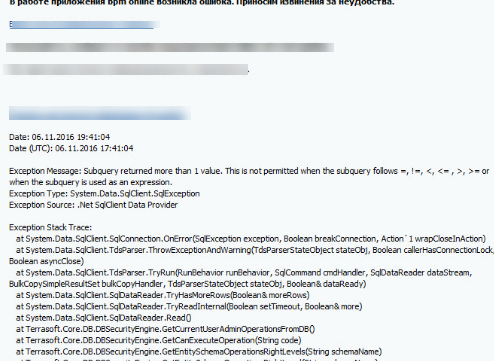
Symptoms

The error occurs when login and passowrd are entered: 

Exception Message: Subquery returned more than 1 value. This is not permitted when the subquery follows =, !=, <, <= , >, >= or when the subquery is used as an expression.

Exception Type: System.Data.SqlClient.SqlException

Exception Source: .Net SqlClient Data Provider

Cause

The error might be caused by update.

Permission duplicates with equal positions.

Solution

Find the duplicate permission name (Code) via a request:

select SAO.Code, SAOG.Position, count(sao.id) from sysadminoperationgrantee SAOG
 
join SysAdminOperation SAO on SAO.ID = SAOG.SysAdminOperationId
 
join SysAdminUnit SAU on SAU.ID = SAOG.SysAdminUnitId
 
group by SAO.Code, SAOG.Position
 
having count(sao.id) > 1

After you find the name (e.g., "CanUseSharedMailBox"), find the list of record IDs that are duplicates.

SELECT * FROM SysAdminOperationGrantee WHERE SysAdminOperationId = (SELECT Id FROM SysAdminOperation WHERE Code = 'CanUseSharedMailBox')

After that, change the number of position in one of the records (does not matter which record). As a result, no duplicates will occur.

UPDATE SysAdminOperationGrantee SET Position = 1 WHERE Id = 'C3665747-F6F6-474F-8CEE-5A7678883F4B'


Like 0

Like

Share

0 comments
Show all comments

Symptoms

Type: Terrasoft.Exception%0D%0A

Message: The current location of the device cannot be determined %0D%0A%0D%0A 

Cause

This message is caused by a temporary network failure.

Solution

Make sure that you have a stable Internet connection and repeat the action.

If the message reappears, we recommend performing the “Clear cache” action in the settings of the mobile application. After that, you need to synchronize again.

Necessary conditions

A stable internet connection.

Like 0

Like

Share

0 comments
Show all comments

Question

How can we use the asyncValidate function from BasePageV2 to verify field population on a page?

Answer

You can view the method implementation in DocumentPageV2. Implement the necessary functionality in a similar way.

Firstly, implement the field population verification method (similar to validateAccountOrContactFilling) that accepts the callback function and execution context as incoming parameters.

Afterwards, call it in asyncValidate.

For example:

asyncValidate: function(callback, scope) {
    this.callParent([function(response) {
        if (!this.validateResponse(response)) {
            return;
        }
        Terrasoft.chain(
            function(next) {
                this.myValidationMethod(function(response) {
                    if (this.validateResponse(response)) {
                        next();
                    }
                }, this);
            },
            function() {
                callback.call(scope, response);
            },
        this);
    }, this]);
}


Like 0

Like

Share

0 comments
Show all comments

Question

How to remove in the blocked lookup fields?

Answer

There's an example in FieldForceMobileActivityModuleConfig:

Terrasoft.sdk.RecordPage.configureColumn("Activity", "VisitActionsDetailV2EmbeddedDetail",
   "Action.FieldForceActionType.Name",
   {
      isInPlaceEditingMode: false,
      customPreviewConfig: {
         xtype: "visitactionviewfield"
      }
   }
);


Like 0

Like

Share

0 comments
Show all comments
7.x
mobile
support
Q&A
SDK

Symptoms

I have problems/questions with a mobile version:

  1. If I add something (contact, account, etc.) In BPM’online this data are exported to BPM Mobile after I make synchronization (it is ok), but when I delete something in BPM’online after synchronization this data aren’t deleted from BPM’mobile,  why?
  2. In Mobile wizard I don’t have tab Dashboard but in BPM’mobile I have this tab, why?
  3. In tab Opportunity Supervisor doesn’t see Opportunities, as I remember you wrote me it is ok behavior but how can I change it? I want so that supervisor saw all Opportunities.

Solution

  1. Unfortunately, mobile app doesn’t know about deleted records in bpm’online right now. We know about this bug and have plans to fix it in one of the future releases.
  2. You can’t set up Dashboard chart in Mobile Wizard (right now) and this feature only in plans.
  3. If you want that every user saw all Opportunities, we can remove current filter for you (app gets Opportunities filtering them by column Owner) and we need a remote connection to your bpm’online site.
Like 0

Like

Share

0 comments
Show all comments
knowledge base
SDK
Q&A
support

Question

How can I make a field group collapsed by default?

Answer

Field groups have a collapsed property. When you describe the field group, set the true value in the diff section.

An example for the OrderPageV2  schema, "Recipient information" field group.

diff: /**SCHEMA_DIFF*/[
    {
        "operation": "merge",
        "parentName": "OrderResultsTab",
        "name": "OrderReceiverInformationResultsControlBlock",
        "values": {
            "controlConfig": {"collapsed": true}
        }
    },
]/**SCHEMA_DIFF*/


Like 0

Like

Share

0 comments
Show all comments

Symptoms

Message: Server request returned an error

AdditionalInfo: {"request":{"id":18,"headers":{"X-Terrasoft-Mobile":"true","Accept":"application/json","Content-Type":"application/json","Authorization":"Cookie","X-Requested-With":"XMLHttpRequest"},"options":{"url":"http://xxx.xxxxx.xxxxx/0/Mobile/Services/MobileCodeService.ashx?functio…","scope":{"asyncOperation":{"initialConfig":{},"config":{},"_isCancelable":true,"asyncManagerIsDisabled":true},"initialConfig":{"url":"http://xxx.xxxxx.xxxxx/0/Mobile/Services/MobileCodeService.ashx?functio…","headers":{"X-Terrasoft-Mobile":"true","Accept":"application/json","Content-Type":"application/json","Authorization":"Cookie"},"method":"GET","disableCaching":false},"performanceCounterKey":"db7a27d6-eb6f-4e84-b32a-e0f21b3e0c73"},"headers":{"X-Terrasoft-Mobile":"true","Accept":"application/json","Content-Type":"application/json","Authorization":"Cookie"},"method":"GET","disableCaching":false},"async":true},"requestId":18,"status":500,"statusText":"Internal Server Error","responseText":"System.NullReferenceException: Ссылка на объект не указывает на экземпляр объекта.\r\n   в Terrasoft.Mobile.MobileUtilities.GetImageListItems(CultureInfo culture, String workplaceCode)\r\n   в Terrasoft.Mobile.MobileUtilities.GetStructureElement(HttpContextBase context)\r\n   в Terrasoft.WebApp.Mobile.Services.MobileCodeService.ProcessRequest(HttpContext context)","responseXML":null,"responseBytes":null} 

Stack trace:

Cause

Access rights to workplaces of the mobile app are not displayed

Solution

1) create an sql script in the Custom package

2) copy the text below there

3) save

4) click the apply button in the database

Request text:

UPDATE [SysProfileData]
SET [ObjectData] = 0x7B224461746147726964223A7B2274696C6564436F6E666967223A227B5C22677269645C223A7B5C22726F77735C223A312C5C22636F6C756D6E735C223A32347D2C5C226974656D735C223A5B7B5C2262696E64546F5C223A5C22537973526F6C652E4E616D655C222C5C2263617074696F6E5C223A5C22526F6C652E4E616D655C222C5C22747970655C223A5C22746578745C222C5C22706F736974696F6E5C223A7B5C22636F6C756D6E5C223A302C5C22636F6C5370616E5C223A32302C5C22726F775C223A317D2C5C226461746156616C7565547970655C223A312C5C226167677265676174696F6E547970655C223A5C225C222C5C2269734261636B776172645C223A66616C73652C5C226D65746143617074696F6E506174685C223A5C22526F6C652E4E616D655C222C5C226D657461506174685C223A5C22537973526F6C652E4E616D655C222C5C22706174685C223A5C22537973526F6C652E4E616D655C222C5C2273657269616C697A656446696C7465725C223A5C227B5C5C5C22636C6173734E616D655C5C5C223A5C5C5C225465727261736F66742E46696C74657247726F75705C5C5C222C5C5C5C226974656D735C5C5C223A7B7D2C5C5C5C226C6F676963616C4F7065726174696F6E5C5C5C223A302C5C5C5C226973456E61626C65645C5C5C223A747275652C5C5C5C2266696C746572547970655C5C5C223A362C5C5C5C226B65795C5C5C223A5C5C5C225C5C5C227D5C222C5C2263617074696F6E436F6E6669675C223A7B5C2276697369626C655C223A66616C73657D7D5D7D222C226C6973746564436F6E666967223A227B5C226974656D735C223A5B5D7D222C226B6579223A225379734D6F62696C65576F726B706C61636550616765537973526F6C65496E4D6F62576F726B706C61636544657461696C222C22697354696C6564223A747275652C2274797065223A2274696C6564227D2C226973436F6C6C6170736564223A66616C73652C2274696C6564436F6C756D6E73436F6E666967223A227B7D222C226C6973746564436F6C756D6E73436F6E666967223A227B7D222C226B6579223A225379734D6F62696C65576F726B706C61636550616765537973526F6C65496E4D6F62576F726B706C61636544657461696C227D
WHERE [Key] LIKE '%SysRoleInMobWorkplaceDetail%'


Like 0

Like

Share

0 comments
Show all comments